Möbius : Frequently Asked Questions


(Formerly Maple TA)
Where can I buy the license to access Möbius?
The first time that you do an online assignment, you will be asked to buy the license to use Möbius. The detailed instructions to purchase the Möbius license are found on the website . Though not compulsory, it is suggested to use your @uottawa.ca email on the registration form.
The license is valid for three terms including the term that you buy the license. So, you may use it for more than one MAT course.
What should I do if I always get an error message when I try to buy the license using PayPal?
First and foremost, your first assignment must open in a new tab of your browser after you click on the link for the assignment in BrightSpace. If the assignment open inside BrightSpace, you should tell your instructor to modify the link so that the assignment open in a new tab.
If you still get an error message or are timed out when trying to pay your license, you must:
- Make sure that your browser is well supported. Read the answer to .
- Make sure that your browser accepts third party cookies. For more information on this subject and on other issues that may cause problems, consult the website .
- Make sure that your browser accepts popups.
The most frequent problem lately is about the country of residence when paying the license with a credit or debit card. The country of residence is the country where you got your card. Despite selecting the write country, you may still get an error message. The problem is that PayPal is not very good in geography. Even a country like France (that everybody should have heard about) may not be recognized by PayPal. In that case, you should select USA-other.
If after all that you still cannot buy the license using PayPal, use Ask the Möbi chatbot on the website . If the Möbi chatbot cannot answer your question, then you will have the option to forward it to the DigitalEd support team.
What should I do if I always get the Möbius login page when I click on a link to an assignment?
You should first verify that the following conditions are satisfied.
- Your browser must be supported by Möbius. Read the answer to .
- When you click on the link to a Möbius assignment in BrightSpace, the content must appear in new tabs in your browser. If they do not, ask your instructors to make it so.
- Your browser must allow third party cookies. For more information on this subject and on other issues that may cause problems, consult the website .
- Your browser must accept popups.
- You must clear old cookies from Möbius and DigitalEd before
trying again to access Möbius assignments through the links in
BrightSpace.
Warning: Depending on the preferences that you have selected for your browser, closing and reopening your browser may or may not remove the old cookies.
If you still have the same problem after having done all that, then you should use Ask the Möbi chatbot on the website . If the Möbi chatbot cannot answer your question, then you will have the option to forward it to the DigitalEd support team.
Are my operating system and browser supported by Möbius?
You should not have any problem using Möbius if you have the latest version of your operating system and browser running on your computer. There may however be some exceptions. To find out which operating systems and browsers are supported by Möbius, please visit the website .
What should I do when I get a message telling me that I do not have the authorisation to start an assignment despite the fact it is still available?
If there is a maximal number of attempts for an assignment, you will be denied access to the assignment after you have reached this maximal number of attempts. Möbius will inform you if it is this situation. There is nothing to do in this situation.
However, if the assignment is still available and you get an error
message telling you that you are not authorized to access this
assignment, then the likely cause of this problem are corrupted
cookies. You must clear old cookies from Möbius and DigitalEd before
trying again to access Möbius assignments through the links in
BrightSpace.
Warning: Depending on the preferences that you have selected
for your browser, closing and reopening your browser may or may
not remove the old cookies.
What can I do when an assignment or a question refuses to load?
You should have gotten the warning icon
 followed by the loading icon
 .
After some time, you should have also gotten a popup window with the following
message.
.
After some time, you should have also gotten a popup window with the following
message.
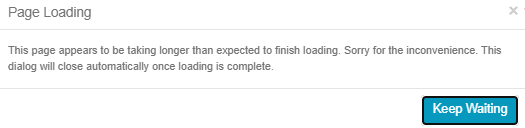
As we have seen several times in the previous questions, the likely culprits for this problem are corrupted cookies. You should verify that the following conditions are satisfied.
- Your browser must allow third party cookies.
- Your browser must accept popups.
- Your network (including your computer and browser) must not block any *.mobius.cloud sites.
- You must not have more than one active session on Möbius (e.g. you must not having two assignments open at the same time, or an assignment and the gradebook on Möbius open at the same time, ...)
- You must clear old cookies from Möbius and DigitalEd before
trying again to access Möbius assignments through the links in
BrightSpace.
Warning: Depending on the preferences that you have selected for your browser, closing and reopening your browser may or may not remove the old cookies.
You may also consult the website to get a list of suggestions to address the common problems with cookies, JavaScript, ... used by your browser.
What should I do if all the instructions in Möbius are in a language other than English (the language that I want)?
There are simpler solutions to solve this issue than learning that new language.
- We assume that you are using the latest version of you operating system and browser.
- First of all, check the setting of your computer and your browser to make sure that English (CA) or English (US) has been selected as the preferred language. Möbius uses this information to select the language used to display the instructions.
- Sometime, it suffices to restart your browser and remove the old cookies associated to Möbius and DigitalEd.
- If, after the previous two steps, you are still in the small group that still get the instructions in a language other than English, try with another browser. If everything is fine with the second browser, then there may be a problem with your first browser. It may be simpler to reinstall it than to try to pin point the issue. If you still get the instructions in another language with the second browser, then the issue is possibly with your operating system. You should get the help of someone with a good knowledge of the type of operating system that you are using.
- You may also use Ask the Möbi chatbot on the website . If the Möbi chatbot cannot answer your question, then you will have the option to forward it to the DigitalEd support team. They may have other suggestions to solve your problem. They may be aware of some bugs in the version of your browser, ...
What should I do when my grades are not recorded on BrightSpace?
If you fail to do so, your grades will not be recorded in BrightSpace. You must not navigate to the course home page on Möbius to access your assignments. Your instructor may refuse to transfer grades from Möbius to BrightSpace and may consider that the assignments have not been submitted if you do not follow these instructions.
Where can I find the due date and instructions for an assignment on Möbius?
The due date and rules (called policies
on Möbius) for each assignment is shown on the first page when you
select an assignment.
The period of accessibility give you the starting date and the due date for the assignment. You cannot work on the assignment outside this period. It is your responsibility to carefully read this information.
On some assignments, you may be given more than one trial at the entire assignment. That is, you may be able to submit your assignment early, learn your grade, and request a new version of the assignment to try to do better. The questions for the newest version of the assignment will be slightly different than those for the previous versions of the assignment.
Unless otherwise stated in the instructions, if more than one attempt is allowed for an assignment, the policy is to take the best mark of all the attempts as the grade for the assignment.
How do I know if I submitted an assignment?
After submitting your assignment, you will get a message that your data have been saved.
How can I check my grade? How do I get the detailed solutions of the assignments?
To gain access to the GradeBook on Möbius, click on the link GradeBook in the module on BrightSpace where you can find your assignments.
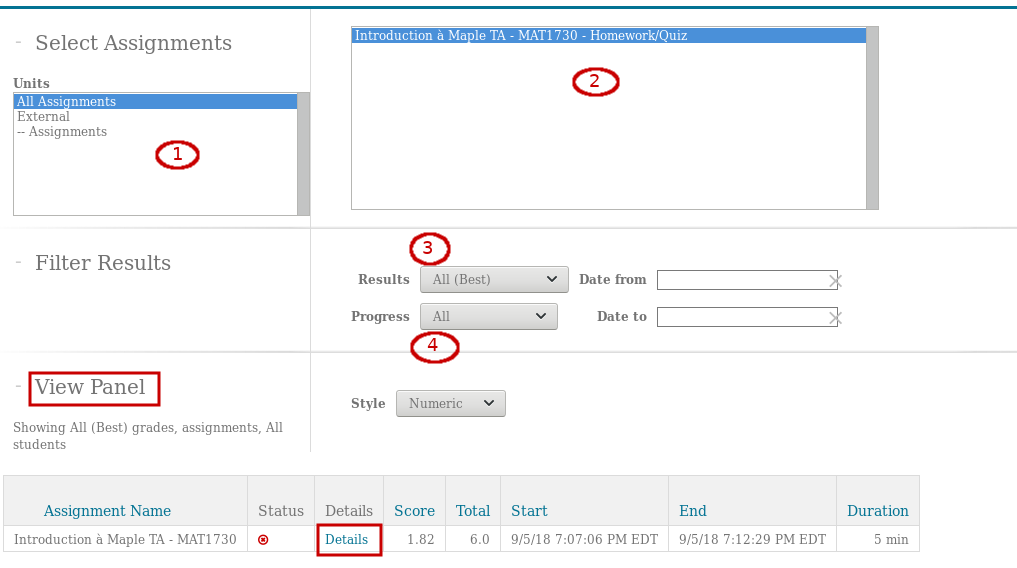
Next, request the list of all the assignments 1 and choose the assignments 2 whose grades and solutions you want. For the assignments selected, you may ask for the version for which you got the highest mark or all the versions that you have attempted 3. You may request only the versions that you have completed 4.
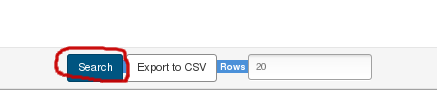
When you have selected the options that you wanted, you only have to click the Search button at the bottom of the page.
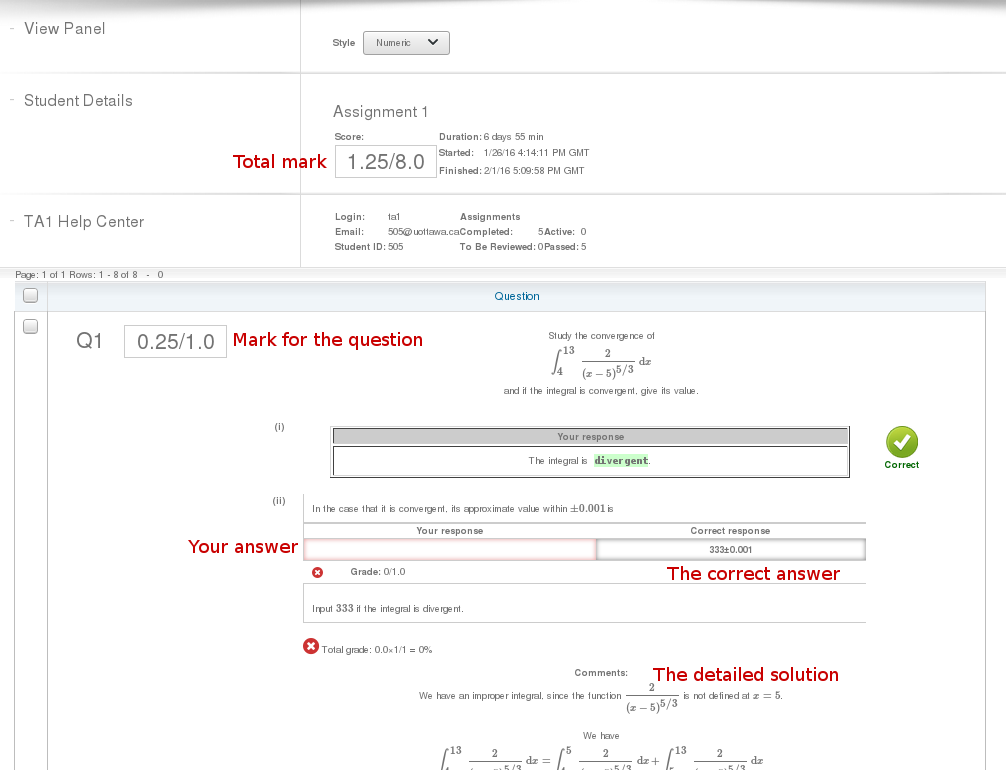
The list of all the assignments that you have requested appears in the section View Panel at the bottom of the menu of the figure above. To see the detailed solutions of an assignment, you only have to click on the link Details (or the Score of the assignment for the latest version of Möbius) on the right of the title of the assignment. According to the instructor's choice, this link may not be available before the deadline to submit the assignment.
If you are allowed to access the detailed solutions of your assignments, you will get a display that looks like the following.
How did I do?
On some assignments, the how did I do? button (on the top left corner of a question) will be enabled. When you click on it, you are told if your answer is correct or not. There is no penalty associated with the use of this option (in fact, you are encouraged to use it when available). For some assignments, there may be a cap on the number of times that you can use this option. On others, you may use this option as many times as you want.
Can I trust the equation editor to write my answer?
There is no short answer to this questions. Some students have reported problems with the graphic interface in the past but there was not anyway to systematically repeat these problems. You may get an error message like the following one when you submit your assignment.
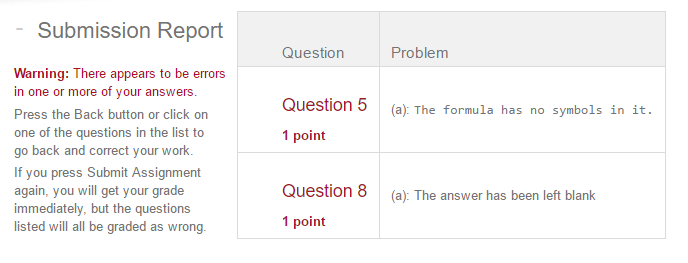
If you do, you should then verify the syntax for your answer.
How do I write this mathematical expression?
There is no short answer to this question. We provide below some information to get started answering questions.
Since the equation editor may not always be reliable, we strongly suggest to use the text mode (when available) and write your answer in scientific notation. Here are some examples.
| Expression | Scientific Notation | Expression | Scientific Notation | |
|---|---|---|---|---|
| 5*x | 3∧2 | |||
| (x∧2+3*x)∧5 | 6∧(1/3) | |||
| 5∧(1/2) or sqrt(5) | (x∧2 + 6)∧(1/2) | |||
| sqrt((x∧2)*cos(x) + 5)/(x∧(2/3)*e∧(x∧2) + ln(x+2)) |
Parentheses are very important when writing rational exponents. For instance, x ∧ 1/2 = (x ∧ 1)/2 = x/2 instead of x ∧ (1/2) as it is probably intended. You must write x ∧ (1/2) to get